Alarm Notifications
Alarm Notifications turn alarm events into messages. Whenever an alarm is created on a site — whether from a device (e.g. a BMS or PLC reporting a hardware fault), an analytic, or a Smart Alarm — the notification engine evaluates your rules and dispatches e-mails or SMS to the recipients you have configured.
Each rule describes a When/Then flow: when alarms matching certain criteria are created, then send these messages using these templates.
Core idea
Alarm Notifications do not generate alarms — they react to alarms that already exist. A Smart Alarm decides whether something is wrong; an Alarm Notification decides who needs to know about it and how.
When to use Alarm Notifications
Use this feature whenever an alarm in the system should reach someone outside the platform without them having to log in. Typical examples:
| Scenario | Trigger filter | Action |
|---|---|---|
| Wake on-call technician for critical faults | Priority = Fault, State = Active | SMS to on-call number |
| Notify facility manager of overnight warnings | Priority = Warning / Anomaly, State = Active | E-mail to facility manager |
| Send digest when alarms self-resolve | State = Resolved | E-mail to a shared inbox |
| Escalate stuck-valve detections from Smart Alarms | Priority = Fault | SMS + E-mail in parallel |
Alarm Notifications work with any alarm in the platform — device alarms forwarded from BMS, PLC or other connected hardware, analytic alarms produced by the rule engine, and Smart Alarm aggregations. There is no separate wiring step; if an alarm reaches the site, the notification engine sees it.
Accessing Alarm Notifications
Open the site you manage, then navigate to Automation and select Alarm Notifications.
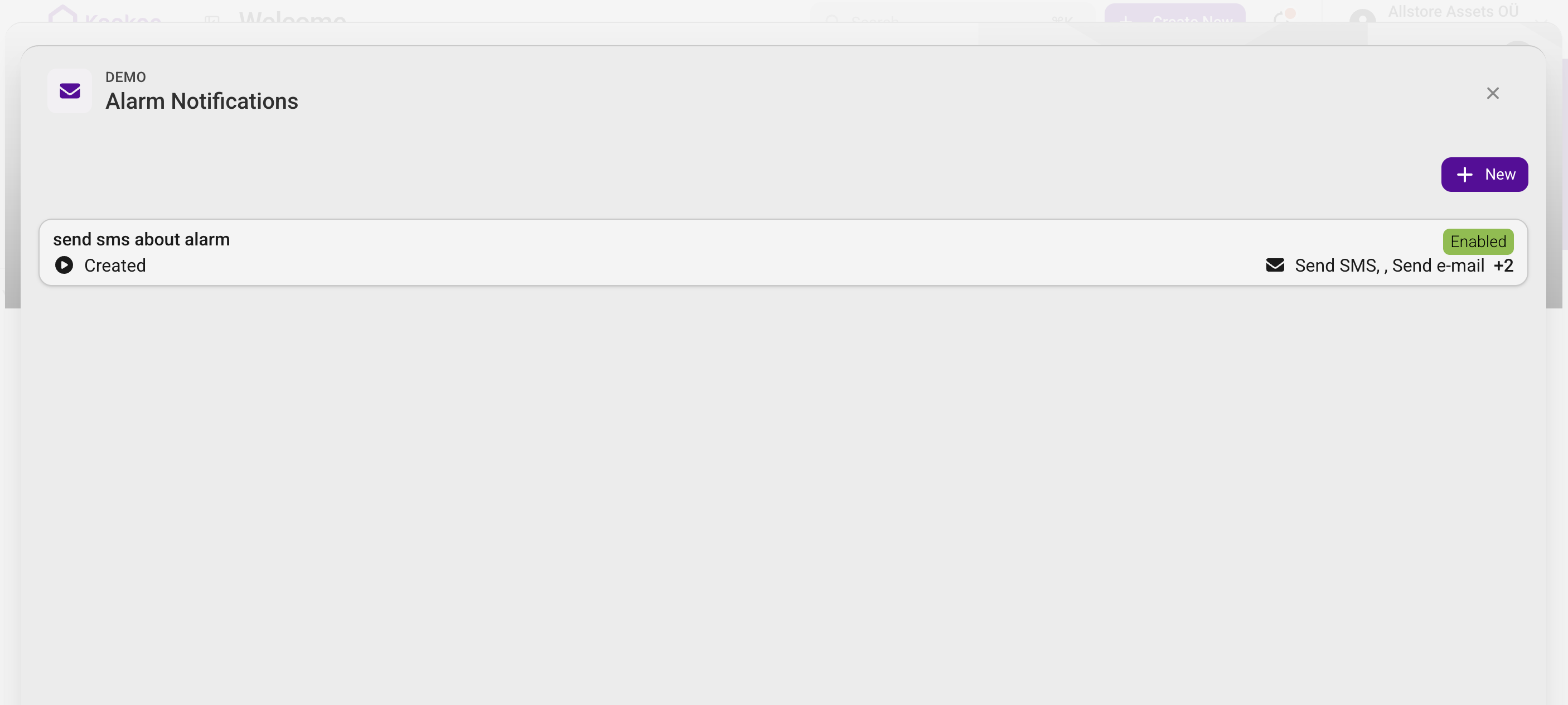
The list view shows every notification rule defined for the site, along with its current Enabled / Disabled state and a summary of the triggers and actions it contains.
Anatomy of a notification rule
A rule has three layers, all configured on the same page:
Notification rule layout
- Summary — the rule name, enabled state, and the site it belongs to.
- Triggers — the When column. One or more conditions describing which alarm events activate the rule. Multiple triggers combine as OR.
- Actions — the Then column. One or more messages to dispatch. Multiple actions combine as AND — every action runs each time the rule fires.
OR triggers, AND actions
If you list two triggers, the rule fires when either matches.
If you list two actions, both are executed on every trigger.
This mirrors how operators usually want to think: "on any of these events, do all of these things".
Step 1 — Create the rule
From the Alarm Notifications list, open New and give the rule a descriptive name (e.g. "On-call SMS — faults"). The Entity is fixed to Alarm — this section of the platform is dedicated to alarm-driven notifications.
After saving, the rule opens in detail view where you can build out triggers and actions.
Name rules by audience and event type rather than by recipient name. "On-call SMS — faults" survives staff changes; "SMS to Anna" doesn't.
Step 2 — Define triggers (When)
Click Create Automation Trigger in the When column. Each trigger is the combination of a trigger type and a set of optional filters.
Trigger type
| Type | Fires when |
|---|---|
| Created | A new alarm record is created on the site |
"Created" covers the full lifecycle for notification purposes — when an alarm becomes Active, when it transitions to Resolved, and when an operator marks it OK (cleared) the platform writes new alarm records that this trigger sees. Use the filters below to narrow which of those events should notify.
Filters
Filters narrow which created alarms activate the trigger. Both filters accept multiple values; leaving a filter empty means any value matches.
With Priority
Match alarms by severity (same four levels shown on alarm badges across the platform):
Warning — informational, no immediate action expected.
Anomaly — unusual pattern detected, investigate when possible.
Error — malfunction affecting system operation.
Fault — serious failure requiring immediate attention.
And State
Match alarms by lifecycle stage:
Active — the underlying condition is currently present.
Resolved — the condition cleared on its own.
OK — an operator manually acknowledged or cleared the alarm.
For example, a trigger configured with Priority = Fault and State = Active will fire only when a Fault-priority alarm becomes active — it will not fire when that same alarm later resolves.
Multiple triggers (OR)
Add more than one trigger when you want a single rule to react to distinct event classes. Each card in the When column is a separate trigger; the rule fires whenever any of them matches.
A common pattern is one rule with two triggers:
- Trigger A —
Priority: Fault, State: Active→ wake on-call - Trigger B —
Priority: Fault, State: Resolved→ confirm the fault cleared
Both triggers share the same actions, so the on-call technician gets one SMS when the fault starts and another when it ends — without maintaining two separate rules.
Step 3 — Define actions (Then)
Click Create Automation Action in the Then column. Each action has two parts: the action type (what to send) and the message template (what to say).
Action types
| Action | Required field | Notes |
|---|---|---|
| Send e-mail | To e-mail address | Free-text address, validated as e-mail format |
| Send SMS | To phone number | Must include country code (e.g. +372555555) |
Webhook actions are not currently exposed in the Alarm Notifications UI.
SMS is billed per message by the upstream provider and has a hard length limit (typically 160 characters per segment). Keep alarm SMS templates short — long templates fragment into multiple billed segments, and very long templates may be rejected.
Message templates
Every action must reference a Message Template. Templates are managed from the account menu → Message Templates (organization admins only), so they can be reused across sites and across rules. A template can be organization-wide or scoped to a specific property — a property-specific template overrides the organization-wide one of the same type for that site. See the Message Templates guide for details.
The template body uses Mustache syntax — placeholders of the form {{variable}} are replaced with values from the alarm record when the message is rendered.
Available variables
The following variables are most relevant for alarm notifications:
| Variable | Description |
|---|---|
{{alarm.priority}} | Numeric priority (0 = Warning, -1 = Anomaly, 1 = Error, 2 = Fault) |
{{alarm.class}} | Alarm class identifier |
{{alarm.source}} | Source system that produced the alarm |
{{alarm.state}} | Current state (active, resolved, ok) |
{{alarm.activatedAt}} | Timestamp the alarm became active |
{{alarm.resolvedAt}} | Timestamp the alarm resolved (if applicable) |
{{deviceAlarmDefinition.name}} | Human-readable name for device-driven alarms |
{{deviceAlarmDefinition.description}} | Long description of the device alarm definition |
{{deviceAlarmDefinition.nodeId}} | Hardware node identifier |
{{analyticAlarmDefinition.name}} | Name for analytic/Smart Alarm definitions |
{{analyticAlarmDefinition.description}} | Long description of the analytic alarm |
{{property.name}} | Site name |
{{property.timezone}} | Site timezone |
{{org.name}} | Organization name |
{{user.firstname}}, {{user.lastname}}, {{user.email}}, {{user.phone}} | Recipient details (when the message is bound to a user) |
Either deviceAlarmDefinition.* or analyticAlarmDefinition.* will be populated for any given alarm — never both. A template that includes both placeholders side-by-side (e.g. {{deviceAlarmDefinition.name}}{{analyticAlarmDefinition.name}}) is the simplest way to display "whichever name applies".
Template examples
A compact SMS template for critical alarms:
[{{property.name}}] CRITICAL: {{deviceAlarmDefinition.name}}{{analyticAlarmDefinition.name}} - state {{alarm.state}} at {{alarm.activatedAt}}
A more detailed e-mail body:
An alarm was raised on {{property.name}}.

Alarm:       {{deviceAlarmDefinition.name}}{{analyticAlarmDefinition.name}}
Priority:    {{alarm.priority}}
State:       {{alarm.state}}
Activated:   {{alarm.activatedAt}}
Source:      {{alarm.source}}

Description:
{{deviceAlarmDefinition.description}}{{analyticAlarmDefinition.description}}
Create one short template for SMS and a longer, formatted one for e-mail, then reuse them across every notification rule on the site. Keeping templates centralized means a single edit propagates to all rules at once.
Multiple actions (AND)
Add more than one action when an event should produce more than one outgoing message — for example SMS to on-call and e-mail to the team inbox. Every action listed in the Then column runs on every trigger match, in the order they appear.
If different audiences need different content, give each action its own template rather than trying to make one template serve both channels.
How notifications are dispatched
Once the rule is enabled, the platform processes each matching alarm asynchronously:
Notification dispatch pipeline
- The alarm record is created on the site.
- The notification engine evaluates every enabled rule whose triggers match the alarm's priority and state.
- For each matching action, the referenced template is rendered against the alarm record's variables.
- The rendered message is queued as a messaging job and handed to the e-mail or SMS provider.
- Delivery happens through the configured upstream provider (SMTP for e-mail, SMS gateway for text).
If the recipient's e-mail or phone is later cleared from their user record, any pending notifications addressed to them are unscheduled automatically — the messaging engine will not attempt to deliver to an empty address.
Managing rules
Rules can be paused without deleting them — useful during planned maintenance or when investigating noisy alarms.
| Action | Effect |
|---|---|
| Disable | Rule remains in the list but stops evaluating alarms. No notifications are sent until re-enabled. |
| Enable | Resumes evaluation of new alarms. Alarms that fired while disabled are not retroactively notified. |
| Remove | Permanently deletes the rule, its triggers, and its actions. Already-queued messages still deliver. |
Disabling a rule does not affect alarms already raised — only the rule's ability to react to new alarms. If a noisy alarm is generating duplicate messages, address the source (the alarm definition, the Smart Alarm threshold) rather than relying on disable/enable cycles.
Best practices
- One rule per audience, not per alarm — A single rule with
Priority: Faultcovers every current and future Fault-priority alarm on the site. Avoid creating one rule per device. - Combine activated + resolved triggers — On-call operators usually want to know when a fault ends, not just when it starts. Two triggers in one rule keeps the lifecycle complete.
- Keep SMS templates under 160 characters — Longer messages fragment into multiple billed segments. Move long descriptions into the e-mail template instead.
- Centralize templates at the organization level — A single SMS template + a single e-mail template is enough for most operators. Reuse them across every rule.
- Filter by priority, not by alarm class — Class names change as devices are reconfigured; priorities are stable. Use priority filters to keep rules robust against renaming.
- Pair with Smart Alarms for end-to-end coverage — A Smart Alarm detects a stuck valve; an Alarm Notification rule with
Priority: Fault, State: Activeputs that detection in the on-call technician's pocket within seconds.
Configure the alarms that drive notifications
Smart Alarms
Build aggregation-based alarms that detect stuck valves, sensor drift, and abnormal consumption — then wire them into Alarm Notifications for end-to-end fault response.