Smart Spaces
Smart Spaces lets you monitor and control the IoT-enabled areas assigned to you — for example, adjusting climate, lighting, or viewing sensor readings in your office or apartment.
Viewing your spaces
Your assigned smart spaces appear as a grid of cards on the dashboard. Each card shows the space name and an icon. If you do not see any spaces, the feature may not be enabled for your property or no spaces have been assigned to you.
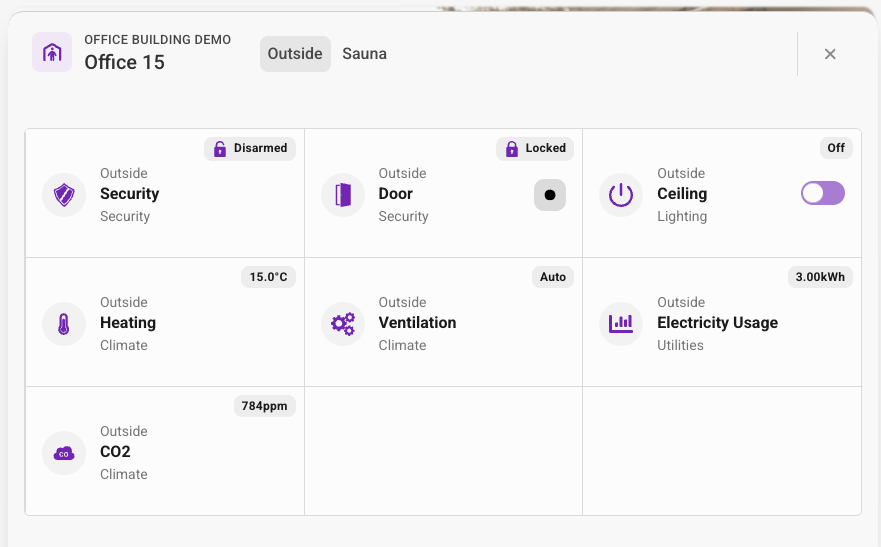
Controlling a space
- On the dashboard, tap the space card you want to control
- A detail view opens showing the available controls and current sensor readings
- Adjust settings as needed (e.g., target temperature, lighting level)
- Changes are applied in real time to the connected devices
The available controls depend on the devices installed in your space:
- Climate — Set target temperature, heating/cooling mode
- Lighting — Turn lights on/off, adjust brightness
- Ventilation — Adjust fan speed or air flow
- Doors / Access — Lock or unlock doors, view access status
- Security Systems — Arm or disarm alarm zones, view system state
- Sensors — View current temperature, humidity, CO₂ levels
Limitations
- You can only control spaces assigned to your access policy
- You cannot add or remove devices from a space
- Changes may be overridden by building automation schedules set by the property manager
- Some controls may be read-only depending on the building configuration